Photo Neat

Duplicate photo finder for folders and external drives

Tidy years of photo folders.
Delete nothing.

Photo Neat finds duplicate photos, near-identical shots and screenshots, sets them aside so only your real photos stay, and sorts the rest into date folders. Every file is moved, never deleted, and every clean-up can be undone.

macOS 14 Sonoma or later · Apple silicon · Works offline, nothing uploaded

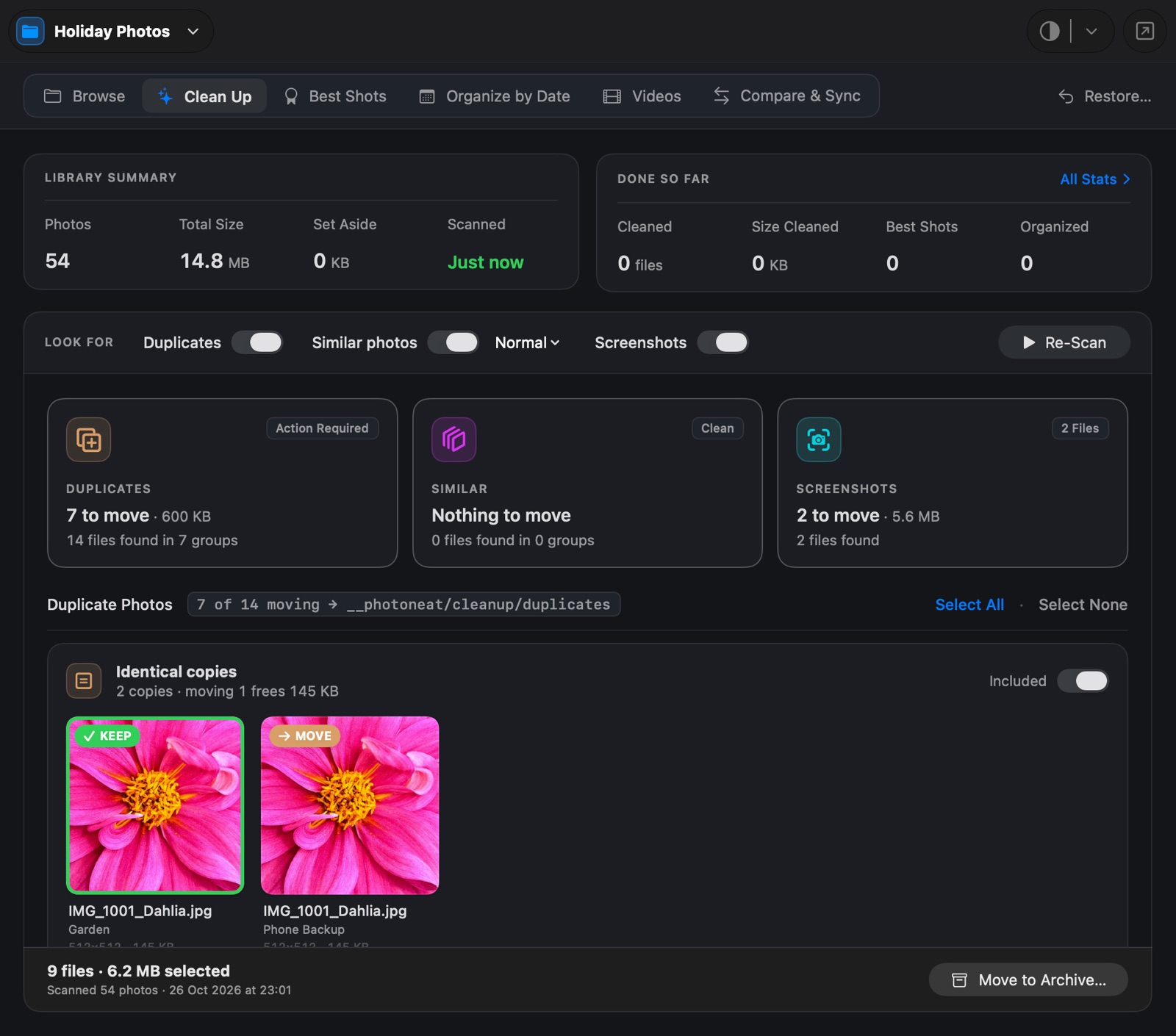
Photo Neat's Clean Up results: duplicate groups with the copy to keep and the copies to move
↪︎

Moves, never deletes

Everything set aside goes into one __photoneat folder inside your project.

⟲

Undo any clean-up

Put a whole clean-up, a category or single files back where they were.

⌂

Stays on your Mac

No account, no cloud, no uploads. Scanning runs entirely on your Mac.

⛁

Made for big drives

Rescans reuse what they learned, and slow external disks are read gently.

Apple Photos has a Duplicates album. Your folders don't.

If your photos live in folders, on an external drive, or in years of phone backups, Photos can't see them. Photo Neat works on any folder you choose, including its sub-folders, and leaves your folder structure as it is.

Clean Up

Duplicates, similar shots and screenshots, sorted out for you

  • Duplicates: identical files, and copies that were resized, recompressed or converted (HEIC to JPEG).
  • Similar photos: burst shots and retakes, with Super Strict, Strict, Normal and Loose matching.
  • Screenshots: from Mac, iPhone, iPad and Android, plus copies of them.

You review every group first. The best copy is kept for you (highest resolution, then largest, then oldest), and one click keeps a different one.
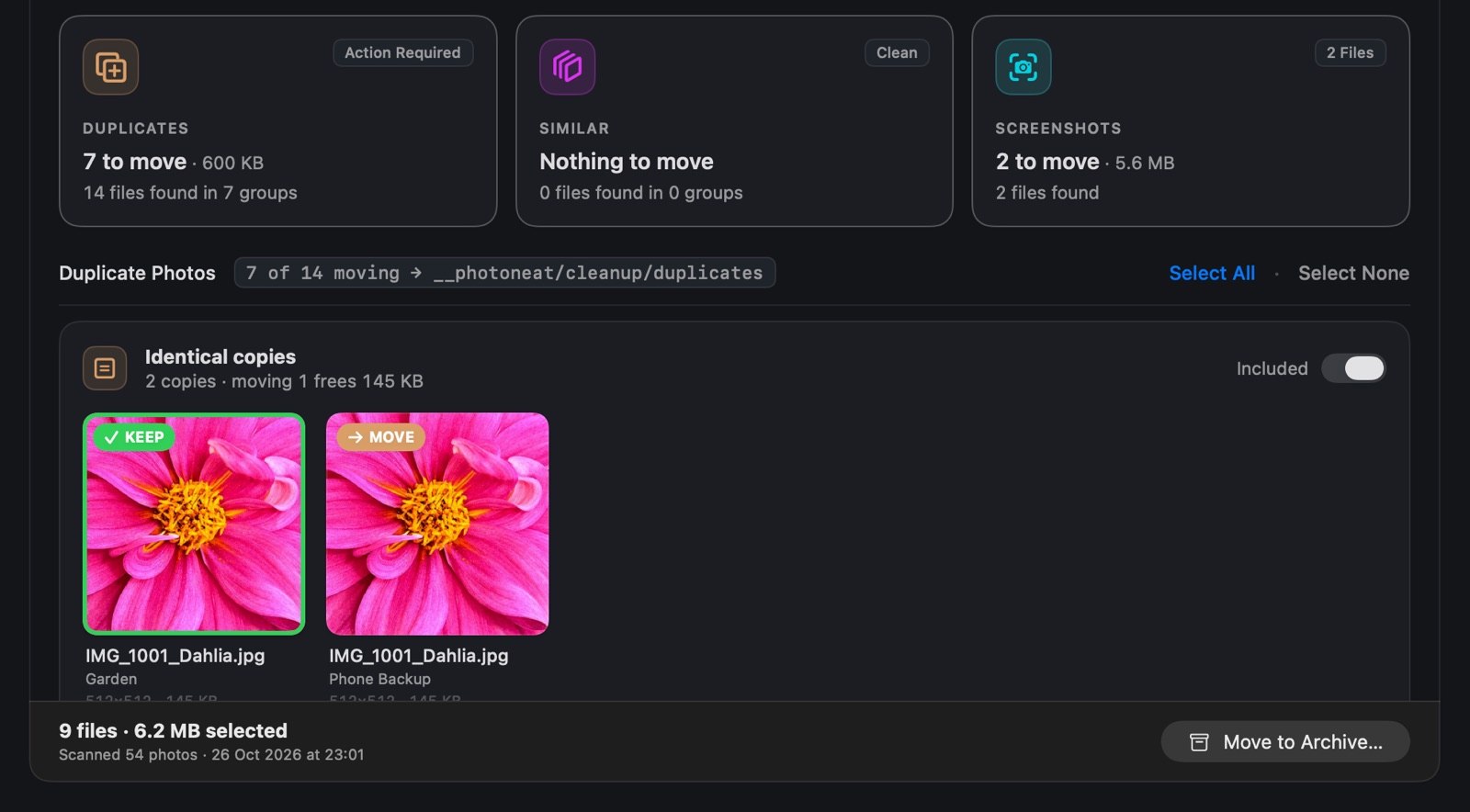
Clean Up results: duplicates, similar photos and screenshots found, with the copy to keep and the copy to move

Best Shots

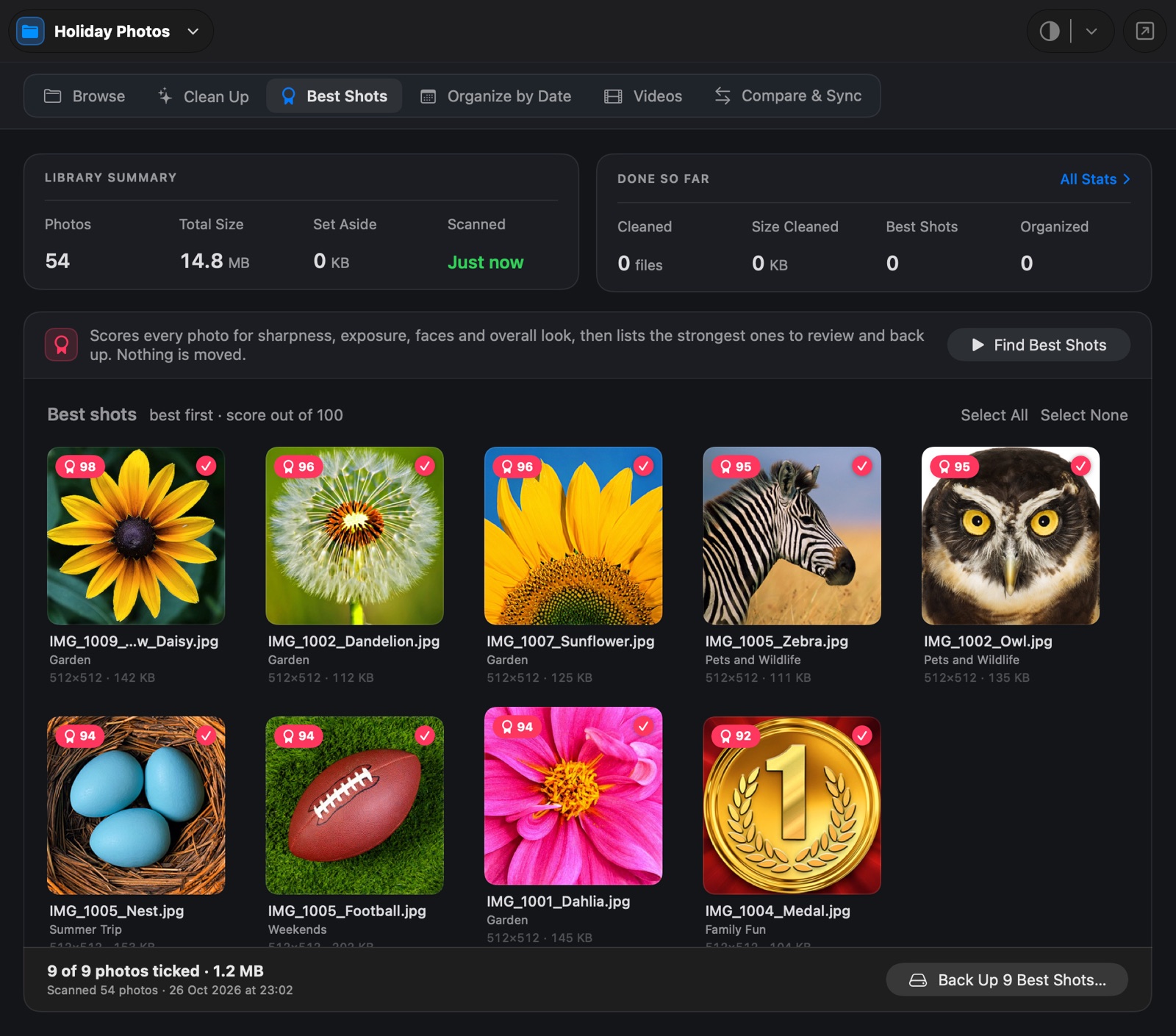
Find your best photos, not just your worst

Every photo is scored for sharpness, exposure, faces and overall look (using Apple's own aesthetics score on macOS 15). The strongest ones are listed best first, ready to back up to another folder. Your originals stay where they are.

Best Shots: the highest-scoring photos, each with a score out of 100

Organize by Date

Year, month or day folders in one step

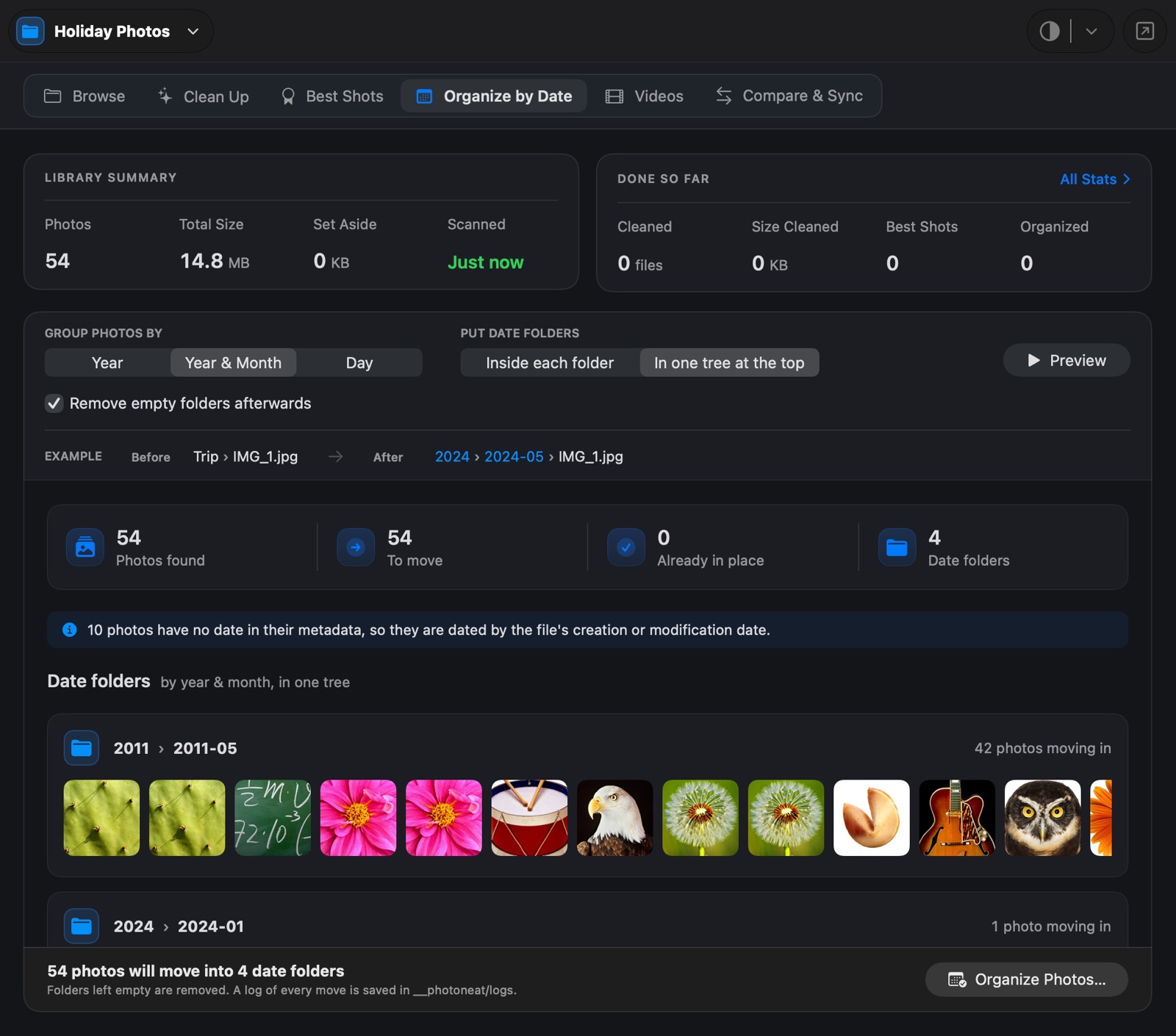
Photos are dated by the capture date in their metadata, or by the file date when there is none. Preview every date folder with thumbnails before anything moves. Keep your structure with date folders inside each folder, or gather everything into one tree. Rerunning is safe: existing date folders are recognized, not nested.

Organize by Date preview showing date folders and the photos moving into them

Compare & Sync

Keep a backup drive in step, copying only what changed

Compare your photos with a backup disk and see what's new, changed, moved or extra, side by side. Sync copies only the differences. Files you reorganized are moved on the backup instead of copied again, and anything replaced or extra goes into an archive folder on the backup, so nothing is lost.

Videos

Separate the videos from the photos

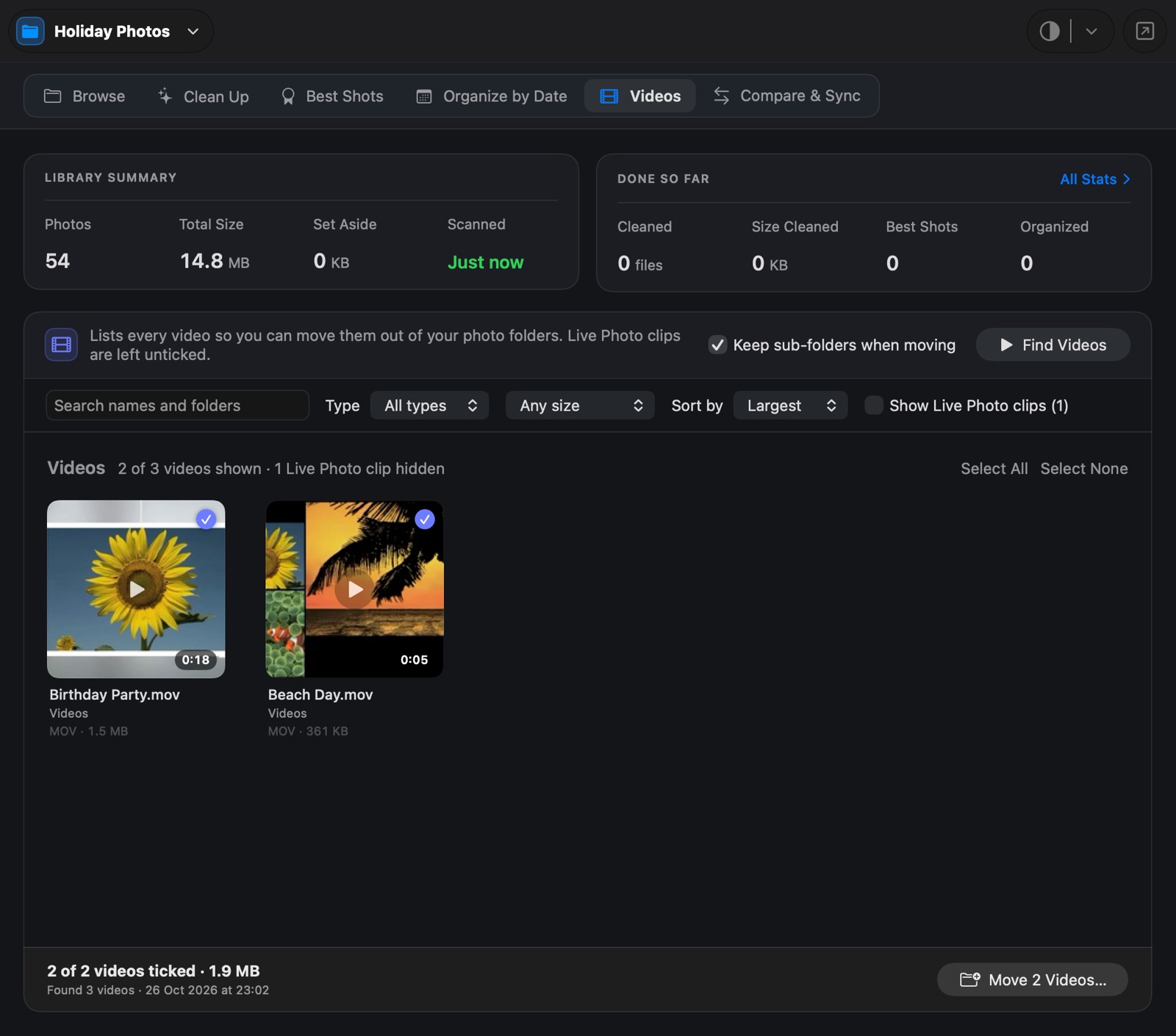
List every video in a folder tree, filter by name, type and size, and move the ones you pick to a folder of your choice, keeping their sub-folders. Live Photo clips are recognized and left alone unless you ask.

The Videos tab with video thumbnails, lengths and filters

Protected folders

Mark a "Best of" or client folder as protected. Nothing in it is ever moved, and a copy there always wins.

RAW + JPEG and Live Photos

A RAW+JPEG pair counts as one photo. Sidecars (.xmp, .aae) and Live Photo videos move and come back with their photo.

Browse and view

Pick any sub-folder at the top of the window to work on just that part, look through its folders, and double-click a photo or video to view it large.

Fast rescans

What a scan learns about each photo is remembered, so the next scan only looks at photos that changed.

Gentle on slow disks

Spinning hard drives and network shares are read a few files at a time instead of all at once.

Light and dark

A native Mac app, written in SwiftUI, that follows your system appearance or your choice.

The main worry with any clean-up tool

"What if it moves the wrong photo?"

Then you put it back. Photo Neat never deletes a photo. Files it sets aside go into one folder inside your project, in plain sight, and every move is written to a log you can open in any spreadsheet.

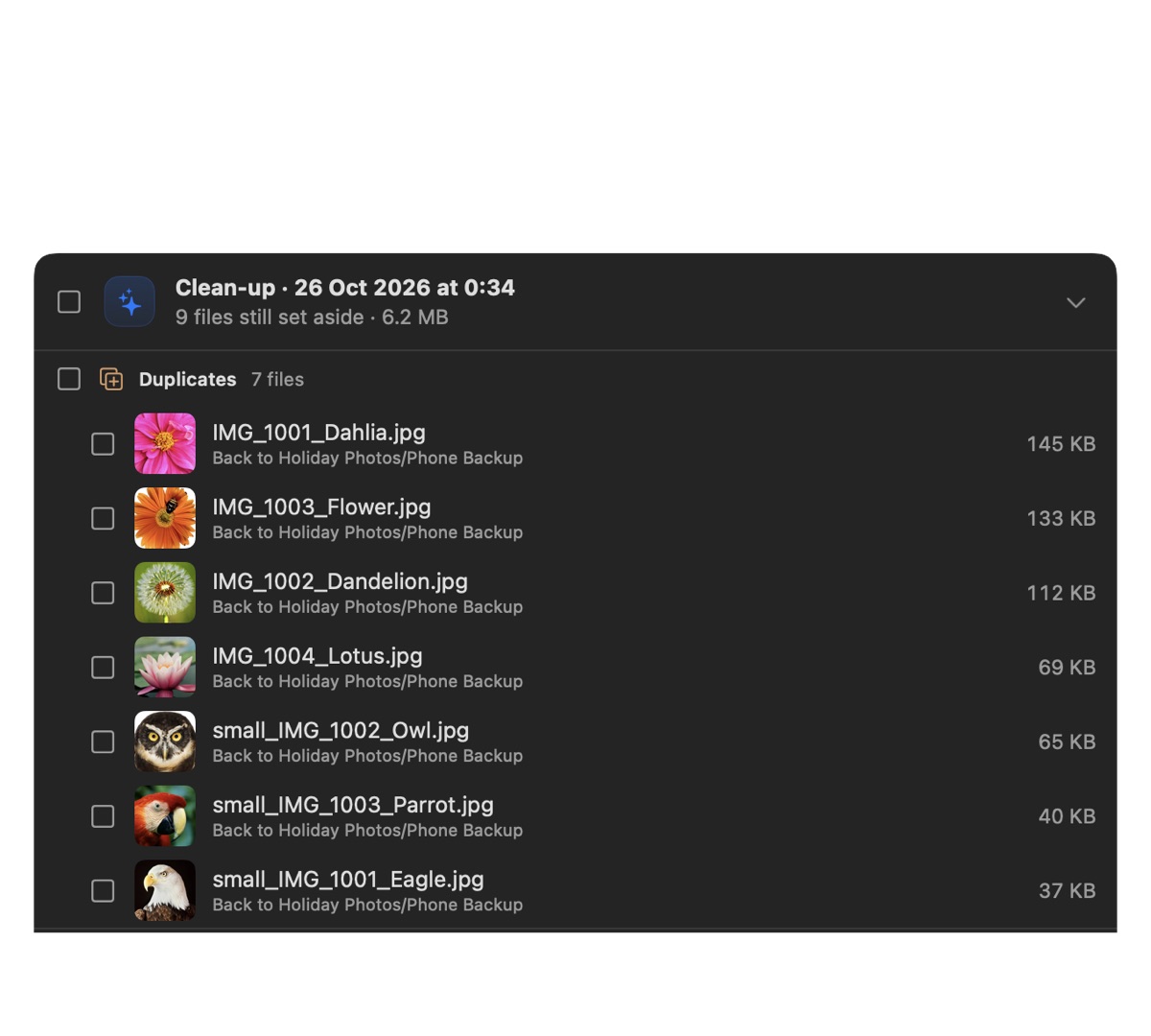
  • Restore puts back a whole clean-up, one category or single files, to their original folders.
  • Undo Clean-up on the result screen reverses the clean-up you just did.
  • Nothing is ever overwritten: a name that's taken again gets a (1) suffix.
  • Paths in the logs are relative, so they still work if you move or rename the project folder.
Holiday Photos/
  __photoneat/
    cleanup/
      duplicates/      extra copies of the same picture
      similar/         extra shots of the same scene
      screenshots/     screenshots
    logs/
      cleanup-….csv    every move: from, to, copy kept
      restore-….csv    every file put back
The Restore window listing past clean-ups with files to put back

Three steps, and you review everything

  1. 1

    Choose a folder

    Drop a photo folder or an external drive's folder on the window. Each one becomes a project you can come back to.

  2. 2

    Scan and review

    See every duplicate group, similar set and screenshot, with thumbnails. Switch off any group you want to leave as it is.

  3. 3

    Move, or undo

    Move to Archive sets them aside in one folder. Changed your mind? Restore puts them back.

How it tells a copy from a similar photo

Careful matching is what makes a clean-up safe. Photo Neat uses several checks, and a photo only joins a group when all of them agree.

Identical files
Files of the same size are compared by SHA-256 checksum, so a match means byte for byte.
Resized or converted copies
A perceptual hash of the picture's structure, a colour signature and the aspect ratio must all match. The colour check keeps edits and colour variants apart.
Similar shots
Apple Vision feature prints compare what's in the photo. A photo joins a group only if it is close to every photo already in it, so unrelated shots never chain together.
Screenshots
Screenshot metadata, typical screenshot names in several languages, a Screenshots folder, or a phone or display resolution with no camera info. A photo with camera info is never treated as a screenshot.

Get Photo Neat

Scan and preview as much as you like before anything moves.

Download for Mac

Version 1.1 · macOS 14 Sonoma or later · Apple silicon

Questions

Does Photo Neat delete my photos?

No. Files it sets aside are moved into __photoneat/cleanup inside your project folder, and Restore can put them back. You decide if and when to delete them, in Finder.

Does it work with the Apple Photos library?

No. Photo Neat works on photos in ordinary folders: on your Mac, on external drives or on network shares. For photos inside the Photos app, Photos has its own Duplicates album.

Is it safe to use on a backup drive?

Yes. It only reads files until you choose to move something, and slow external disks are read a few files at a time. Compare & Sync never overwrites or deletes: replaced and extra files go into an archive folder on the destination.

What about RAW + JPEG pairs and Live Photos?

A RAW file and the JPEG or HEIC of the same shot count as one photo, not as duplicates. Sidecar files (.xmp, .aae) and the video half of a Live Photo stay with their photo when it moves, and come back with it on Restore.

Can I keep some folders untouched?

Yes. Mark them as protected. Nothing in a protected folder is ever moved, and when a photo has a copy there, that copy is always the one kept.

Which file types does it support?

JPEG, PNG, HEIC/HEIF, TIFF, GIF, BMP, WebP and common RAW formats (DNG, CR2, CR3, NEF, ARW, RAF, ORF, RW2, SRW, PEF). The Videos tab finds MOV, MP4, M4V, AVI, MKV, MTS, 3GP, WMV, WebM, MPEG and more.

Does it upload my photos anywhere?

No. Everything runs on your Mac, and Photo Neat needs no account or internet connection to scan, review or move files. See the privacy page.

What do I need to run it?

A Mac with Apple silicon running macOS 14 Sonoma or later. The Best Shots aesthetics score uses an Apple feature available from macOS 15.